


SpotOnTask keeps task payments on the platform from the time a task is funded until the Poster releases payment. This guide explains what Posters pay, what Workers receive, how refunds and credits work, and how Workers cash out their earnings.
How a task payment works
- The Poster adds a credit or debit card in Account -> Payment methods.
- When the task is posted, the budget is funded through Spot On Task Pay and the payment is held for the task.
- Workers make offers. Each Worker can see the offer amount, service fee, and You'll receive amount before submitting.
- The Poster accepts an offer and the Worker completes the agreed work.
- The Worker requests payment and the Poster checks the work.
- The Poster selects Release payment. The Worker's net amount is then added to their available Spot On Task balance.
For Posters: funding a task
Your task budget is funded when you post the task. Card payments are processed securely through Stripe, and your payment remains linked to the task while it is open, assigned, or in progress.
- Add, update, or remove your saved card from Account -> Payment methods.
- If you increase the budget, you may need to authorise an additional payment for the difference.
- If you reduce the budget while changes are still allowed, the difference is added to your Spot On Task balance.
- If the accepted offer is lower than the funded budget, the unused amount is added to your balance when payment is released.
For Workers: offer amount, service fee, and earnings
A service fee may be deducted from a Worker's offer. SpotOnTask shows the complete breakdown before the offer is submitted or updated:
- Offer amount: The total price shown to the Poster.
- Service fee: The platform fee deducted from the offer amount.
- You'll receive: The net amount added to the Worker's balance after payment is released.
Service fees can change, so always check the breakdown displayed for the current offer.
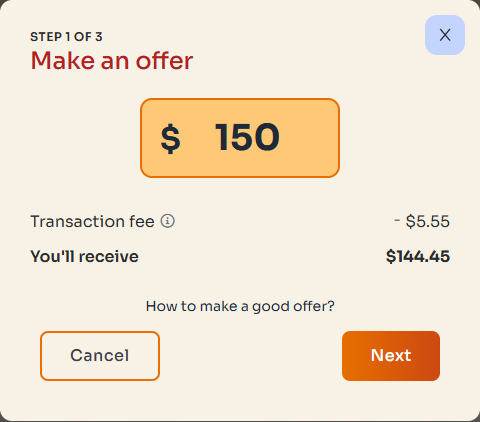
Check the offer breakdown before submitting. The amounts shown here are examples, not a quote for your task.
Requesting and releasing payment
When the agreed work is complete, the Worker can request payment. The Poster should inspect the work and resolve any final questions in the task conversation before releasing it.
- Only the Poster can release payment for the task.
- The Worker should request payment only after completing the agreed scope.
- The Poster should select Release payment only when satisfied that the task is complete.
- Once payment is released, the task is completed and cannot be cancelled or refunded through the normal task flow.
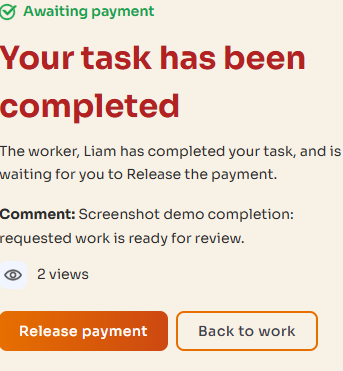
After checking the completed work, the Poster can release payment. Release credits the Worker's balance; it is not a bank payout.
Spot On Task balances and task credits
Your account may show different types of credit. They are not all used in the same way.
- Available Spot On Task balance: May include completed-task earnings, cancellation refunds, or budget adjustments. An eligible balance can be cashed out.
- Poster referral task credits: Applied automatically to eligible task payments. These credits are separate and cannot be withdrawn as cash.
- Eligible Worker referral bonuses: May be included in a cash-out after their eligibility requirements have been met.
View your current balance and its breakdown in Account -> Payment methods.
How Workers cash out
Before your first cash-out, complete all of the following:
- Open Account -> Payment methods and select Receive payments.
- Complete your Stripe payout setup.
- Add your billing address.
- Enable two-factor authentication. It is required for every cash-out.
- Make sure your available balance is more than $10.
When you cash out, enter the six-digit code from your authenticator app. You can track the request under Cash out history on the Payment methods page.
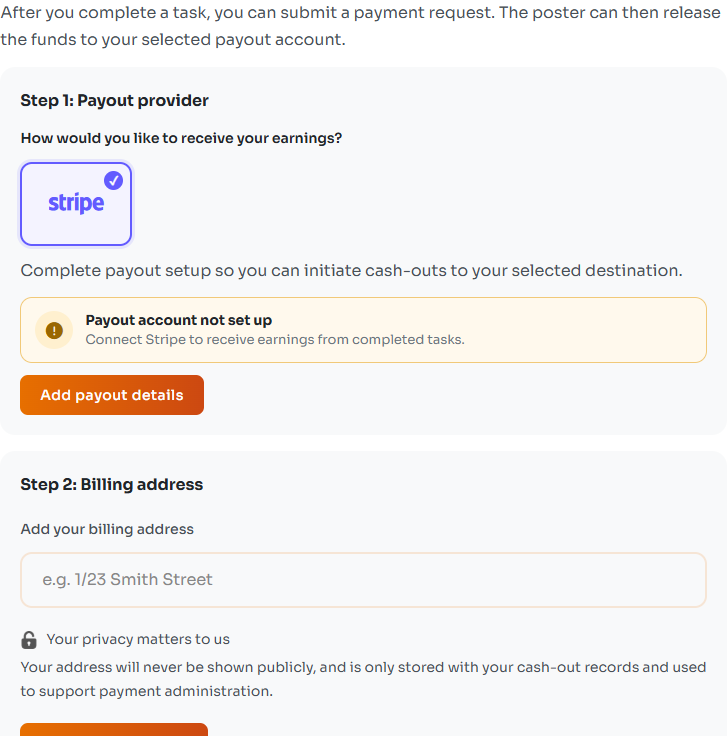
Complete payout setup and your billing address before requesting a cash-out.
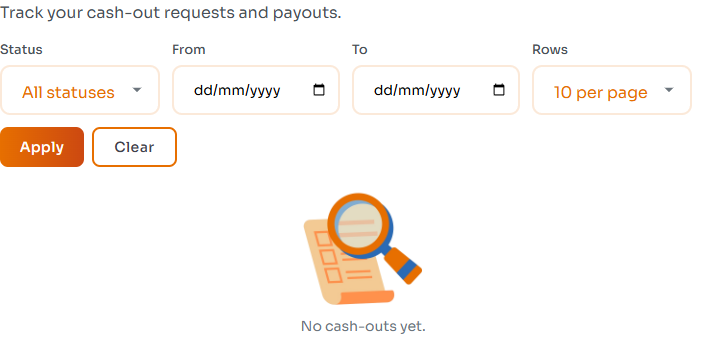
Check Cash out history to track requests. This example account has no cash-outs yet.
Payout speed
- Standard: Usually 1-2 business days.
- Instant: Usually within a few minutes when your payout destination is eligible. Stripe fees may apply.
- If instant payout is unavailable, the request may be sent as a standard payout instead.
These timeframes are estimates. Bank processing, account reviews, weekends, and public holidays may cause delays.
Cancellations and refunds
- If an unassigned task is cancelled, the refundable card-funded amount is generally added to the Poster's Spot On Task balance. Any referral task credits used for the payment are restored separately.
- If a task is cancelled after it has been assigned or started, a cancellation fee may be deducted. The cancellation screen shows the fee and amount to be returned before the Poster confirms.
- A completed task, released payment, or disputed payment cannot be cancelled through the normal cancellation action.
- Payments requiring review or dispute assistance must be handled by support.
Payment history and invoices
Open Account -> Payments history to review:
- Earned: Completed tasks for which you were the accepted Worker.
- Outgoing: Tasks you posted and funded.
- Refunded: Cancelled tasks for which an amount was returned to your balance.
Where available, open an invoice from the payment record to view task, payment, fee, release, or refund details.
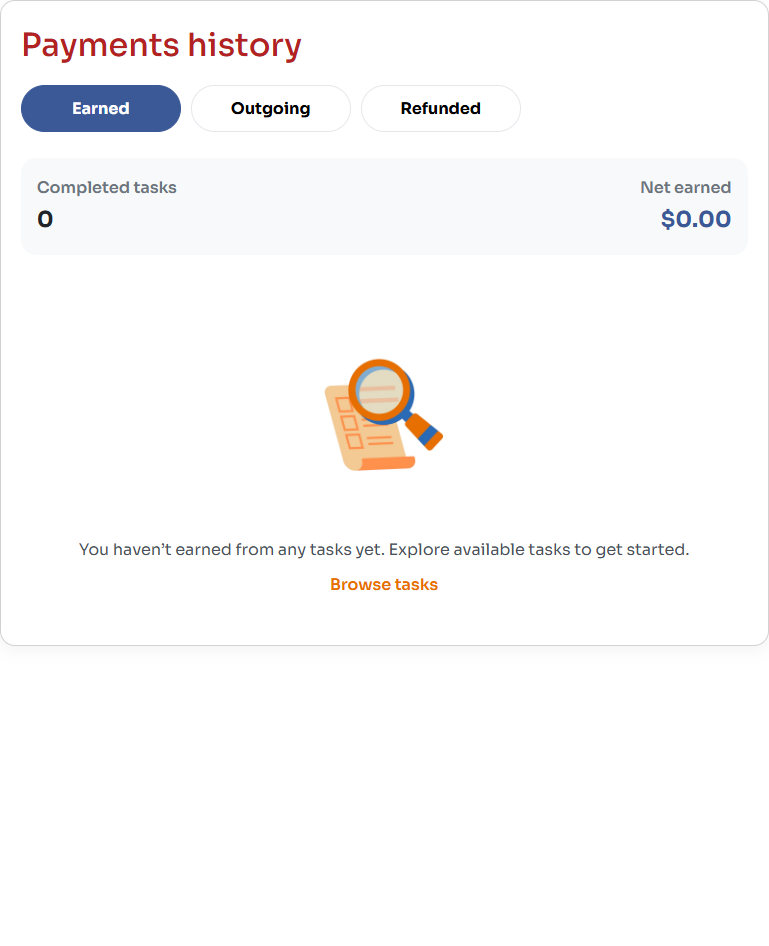
Choose the history tab for the record you need. This example has no completed-task earnings.
Common payment problems
- Your card is declined: Check the card details and available funds, try another card, or contact your bank.
- Payment is not releasing: Confirm the task has an accepted Worker, the work is complete, and the payment is still held.
- You cannot cash out: Complete Stripe payout setup, add your billing address, enable two-factor authentication, and make sure your balance is more than $10.
- Instant payout is unavailable: Use the standard option or allow the request to fall back to a standard payout.
- A refund or payout is missing: Check Payment history or Cash out history first, then contact support if the status does not update.
Payment safety tips
- Keep payments and payment-related decisions on SpotOnTask.
- Use the task conversation to record changes to the scope, timing, or materials.
- Workers should check You'll receive before submitting an offer.
- Posters should inspect completed work before releasing payment.
- Never share card details, passwords, or two-factor authentication codes in messages.
When to contact support
Contact support if a payment remains stuck, payment release fails, a cash-out needs review, or a refund does not appear. Include your account email, task name or ID, payment date, your role in the task, and a screenshot of any error message. Do not include full card details or authentication codes.