


Two-factor authentication (2FA) adds an authenticator code to your password. It helps protect your account if someone learns your password, and it is required before you can cash out money from SpotOnTask.
What you need
Use an authenticator app or security extension such as 1Password, Authy, or Microsoft Authenticator. SpotOnTask does not send 2FA codes by SMS or email.
Enable two-factor authentication
- Open Account -> Two factor authentication.
- Enter your current password, then select Get a QR code.
- Scan the QR code with your authenticator app. If you cannot scan it, use the setup key shown on the page.
- Enter the current 6-digit code from your authenticator app and confirm.
- Save the recovery codes somewhere secure, such as a password manager. They are shown only when they are created.
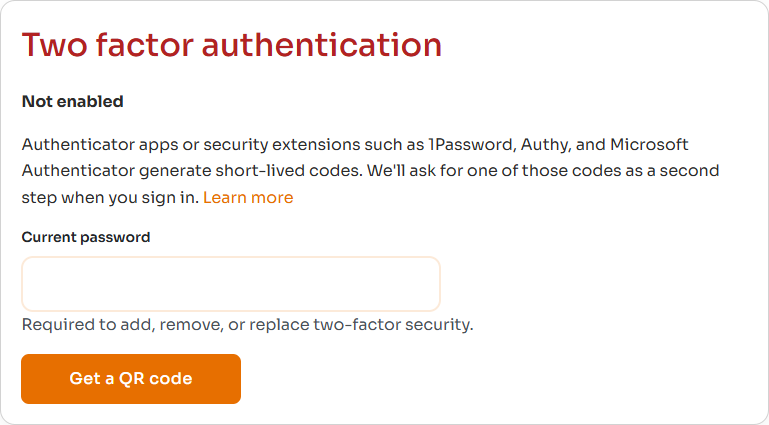
Enter your current password, then select Get a QR code to begin authenticator setup.
When SpotOnTask asks for a code
- Signing in: After entering your email and password, enter the current 6-digit authenticator code. Once 2FA is enabled, it is required at sign-in.
- Cashing out: 2FA must be enabled, and the cash-out confirmation requires a current 6-digit authenticator code.
- Changing 2FA settings: Removing 2FA or replacing recovery codes requires confirmation with an authenticator or recovery code.
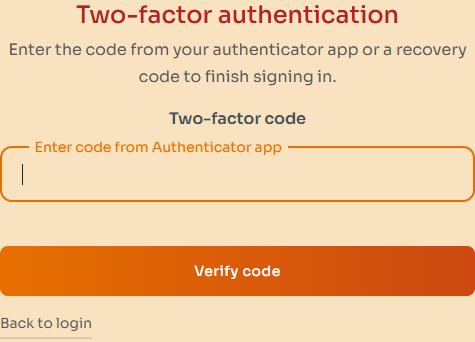
To finish signing in, enter your current authenticator code or an unused recovery code, then select Verify code.
Using recovery codes
A recovery code can be used when you cannot access your authenticator. Each recovery code works once. Cross out or delete a code after using it, and never store recovery codes beside your password.
You can select Replace recovery codes on the two-factor settings page. Replacing them invalidates the old set, so save the new codes before leaving the page.
If you lose your authenticator
- Use one unused recovery code to sign in.
- Open the two-factor settings page and restore access to your authenticator or replace your recovery codes.
- If you have no working authenticator and no unused recovery code, contact SpotOnTask support for account-recovery help.
Removing 2FA
On the two-factor settings page, select Remove two-factor and confirm with your current authenticator code or an unused recovery code. Cash-out will remain unavailable until you enable 2FA again.
Keep your account secure
- Never share your password, authenticator code, QR code, setup key, or recovery codes.
- SpotOnTask support will not ask you to send a 2FA code or recovery code.
- If a code is rejected, wait for a new code and check that your device date and time are set automatically.
- If you suspect someone accessed your account, change your password and contact support.