


This guide explains how to price a task and keep its payment record accurate. For the complete payment flow, see How payments work on SpotOnTask.
Submit a fixed-total offer
A Worker's offer must be one total for the full agreed scope. It should account for labour, materials, travel, purchases, and other expected costs. You may calculate the total using time or quantity, but do not submit an open-ended hourly, unit, commission, partial, inspection-only, or quote-only arrangement.
Fund the task through SpotOnTask
The Poster is charged when the task is posted, and the budget is recorded as Held. Accepting an offer does not create a second charge for that offer. If an agreed offer exceeds the funded budget, the Poster must increase the budget and fund the difference before accepting it.
Keep costs on-platform
Do not request or make separate cash, bank-transfer, cryptocurrency, gift-card, tip, deposit, or reimbursement payments. If materials or purchases are required, record them in task chat and include them in the funded task budget and fixed offer.
Check the amounts before proceeding
- Poster: Review the funded budget, offer total, scope, and any budget-increase charge.
- Worker: Review the offer amount, service fee, and You'll receive.
- Both: Record material changes in task chat before work continues.
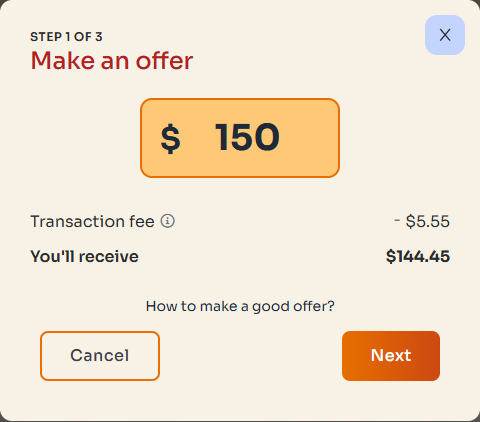
Workers should check all three amounts: offer total, service fee, and net earnings. The figures shown are examples.
Payment and payout details
Posters use a payment option available at secure checkout. Workers separately configure payout details and a billing address in Payment methods. A released task payment is first credited to the Worker's SpotOnTask balance; it is not automatically sent to a bank account.
Never send card numbers, bank credentials, passwords, or authentication codes through messages or support requests.
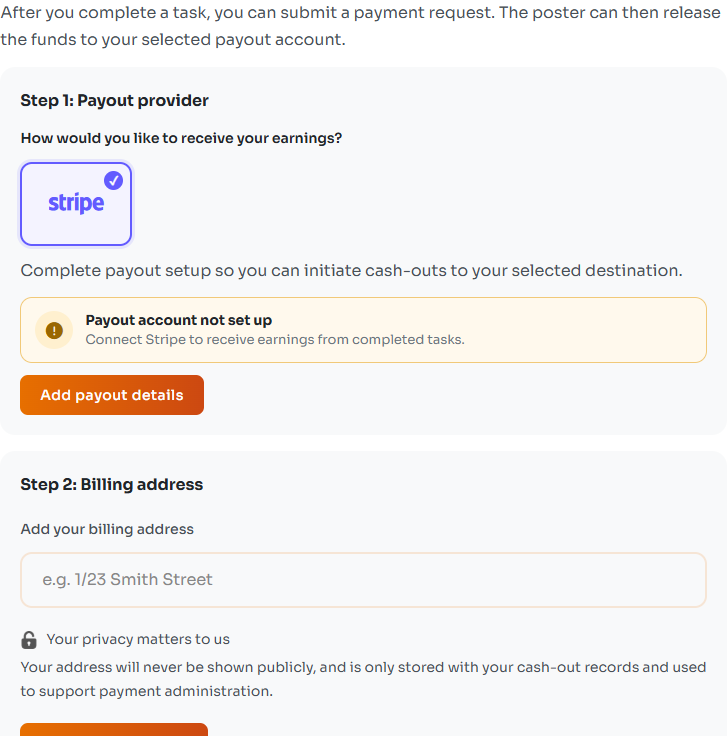
Workers configure their payout destination separately in Payment methods → Receive payments.
Related articles: